
What is a monitor? Computer screens and connections explained
Learn what a computer monitor does, how it differs from a computer, and what to check before connecting one through HDMI, DisplayPort or USB-C.
By Device Basics
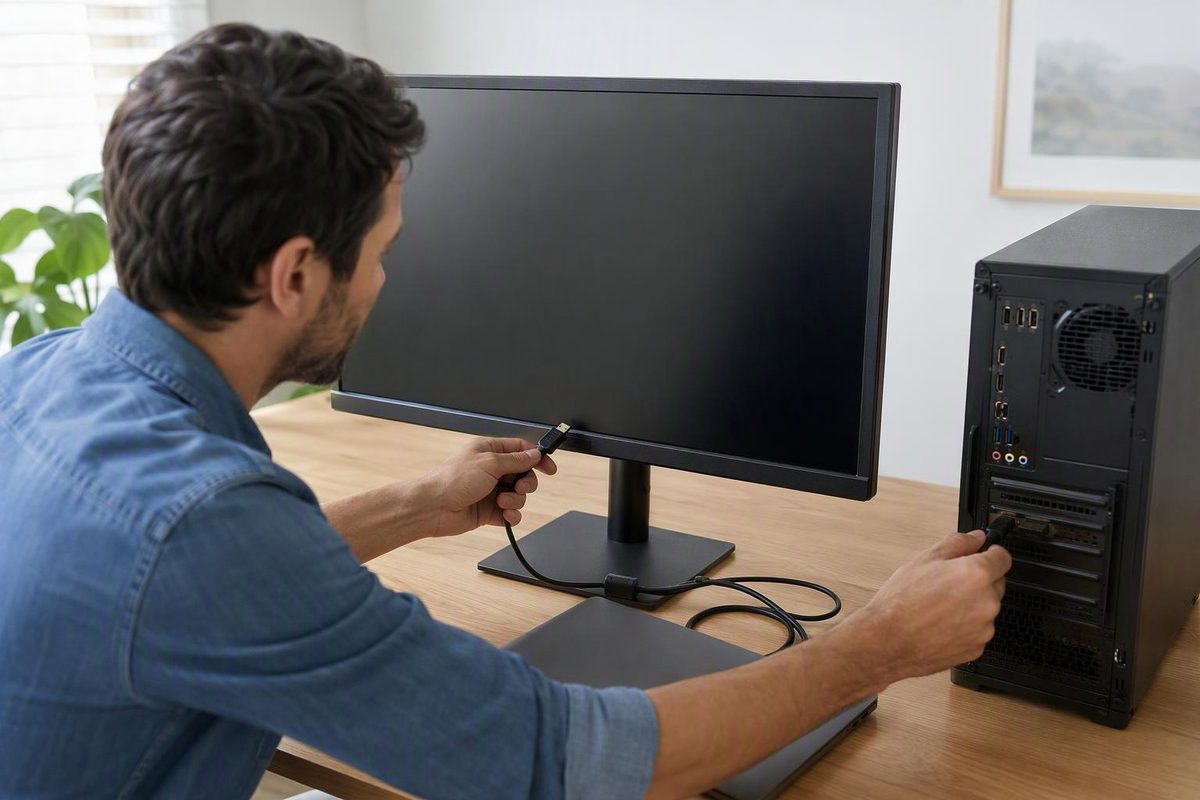
A computer monitor is a screen that displays information from a computer—such as your desktop, documents, websites, photos and games. The computer runs the software; the monitor lets you see the results. It is also called a display. Lenovo’s monitor explainer describes this basic role.
Is a monitor the same as a computer?
Usually, no. A separate monitor connects to a desktop computer or laptop. Buying an ordinary monitor does not give you a complete computer.
An all-in-one computer is different: it combines the screen, processor, memory and storage in one unit. It may look like a monitor, but the computer is built into the same housing. Lenovo explains the all-in-one design.
You can also connect a monitor to a laptop as a second screen. For example, you might keep a document on the laptop and a reference website on the external monitor. Some monitors can display video from a game console or streaming device too, provided the connections match. Built-in speakers are not guaranteed; check the model’s specifications if you need sound. Lenovo’s guide covers these uses.
Which connection does a monitor use?
Before buying a cable, check both the computer’s video output and the monitor’s video input. These are the ports that send and receive the picture.
| Connection | What to know |
|---|---|
| HDMI | A common connection on computers and monitors. |
| DisplayPort | Another common computer-to-monitor connection. |
| USB-C | Can carry video when the computer’s port supports it; the connector’s shape alone is not enough. |
| VGA | An older connection you may find on older equipment. |
Not every USB-C port supports a monitor. For a standard USB-C video connection, look for DisplayPort Alternate Mode or Thunderbolt support in the computer’s manual. Use a compatible video cable, not just any cable that fits. Dell’s connection guide explains these ports and the USB-C limitation.
If the computer and monitor have different ports, a suitable adapter may work. Check compatibility before buying rather than assuming any adapter will connect them.
A simple first setup
- Check the manuals and ports so you know which cable to use.
- Save your work and turn off the computer before connecting it.
- Connect the monitor’s power supply and video cable. Follow the monitor’s power instructions.
- Turn on the monitor and computer. If needed, use the monitor’s buttons to select the input matching your cable, such as HDMI or DisplayPort.
These steps follow Dell’s monitor setup guide and Apple’s display connection guidance.
With two screens, choose how they work together:
- Duplicate or mirror: show the same content on both.
- Extend: give yourself additional desktop space for different windows.
In Windows 11, press Windows key + P to choose Duplicate or Extend. In macOS, open Apple menu → System Settings → Displays to configure the connected display. See Microsoft’s display options and Apple’s display settings.
If the screen stays blank, first check its power, selected input and cable connections. If those checks do not help, use the model-specific support instructions before buying another cable or adapter.