
Phone gets hot when charging: what to check and when to stop
Learn when charging warmth is normal, how to check your phone and charger safely, and which warning signs mean stop using it or seek service.
By Device Basics
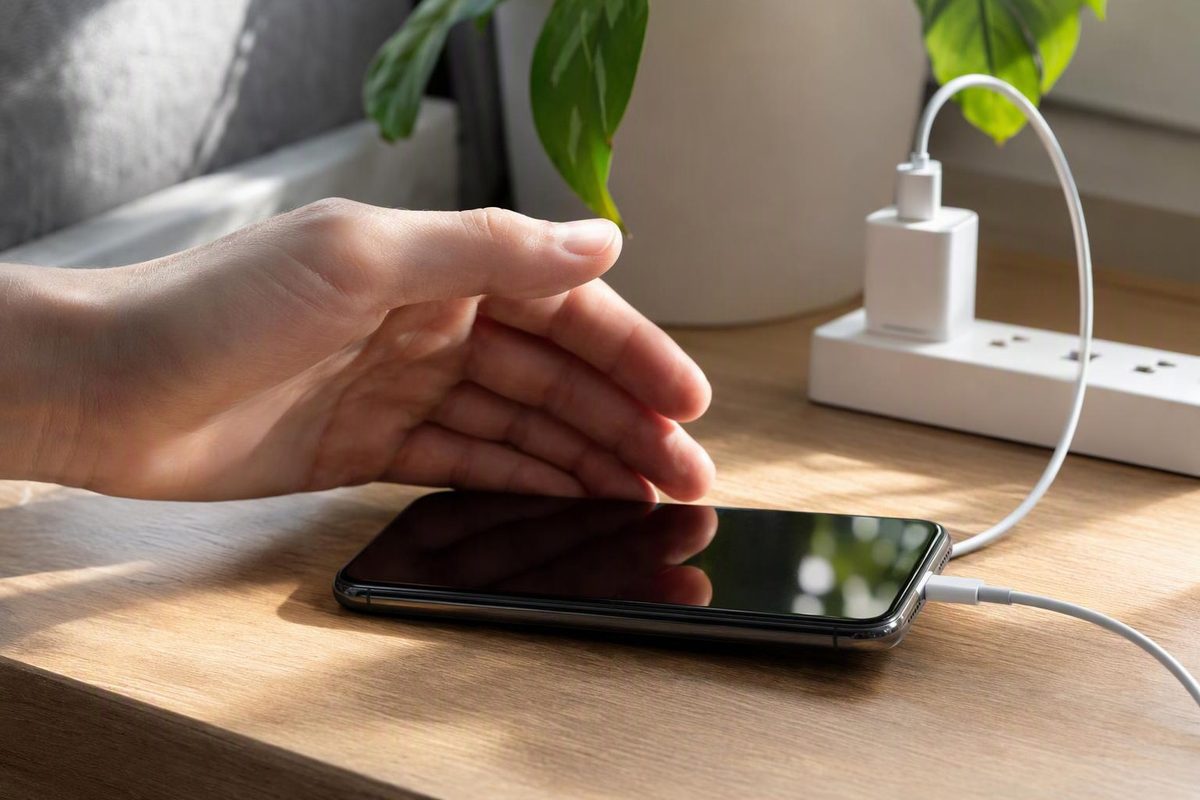
Some warmth while charging is normal. It does not, by itself, mean your battery needs replacing. Samsung describes slight charging heat as normal; Apple also lists wireless charging as a normal reason an iPhone may feel warmer. Heavy phone use can add to that warmth. (Samsung guidance, Apple temperature guidance)
But if the phone becomes uncomfortable to handle, shows a temperature warning, or repeatedly shuts down, stop charging and let it cool before investigating. Swelling, smoke, unusual smells or noises require a different response—not another charging test.
First, decide whether to stop
- Mild warmth, no warning or damage: Try the checks below to reduce heat and see whether it returns.
- Uncomfortable heat or a temperature warning: Disconnect the charger if safe, stop using the phone and let it cool in a cooler, ventilated place away from sunlight. If an iPhone displays its temperature warning screen, Apple says to turn it off. Google likewise says not to use an overheated Pixel until it has cooled. (Google instructions, Apple instructions)
- Extreme heat, swelling or bulging, leakage, unusual odor, hissing, cracking or popping: Stop using and charging the device. Do not continue troubleshooting or try to open, press flat or puncture the battery. These are recognized lithium-ion battery warning signs. New York State fire-safety guidance advises leaving the area and calling emergency services when these signs appear. If the device is smoking, get outside and stay outside. Call your local emergency number; do not put yourself at risk to unplug or move it. (New York State fire-safety guidance, Los Angeles Fire Department battery guidance)
Do not wait for an on-screen warning if there are physical signs of damage. Apple specifically says to discontinue use when you suspect phone or battery damage. (Apple safety guidance)
Check charging heat in a safe order
Only try these checks once the phone has cooled and has no damage or battery warning signs. Change one thing at a time; this can help identify a trigger, but it cannot prove that the battery is healthy.
1. Remove extra workload and trapped heat
Stop games, video calls, navigation, recording and hotspot use. Let the phone charge with the screen off instead. Google identifies these resource-heavy activities—especially during charging—as possible sources of heat. Setup, backup restoration and large transfers can also make a phone warm. (Google heat guidance)
Move the phone off bedding and out of sunlight. Use a hard, flat surface with ventilation. Samsung recommends a hard, flat charging surface; Apple warns against charging under a blanket, pillow or your body. (Samsung charging guidance, Apple charging safety)
Remove the case if it comes off normally without forcing it. Samsung says a case can increase temperature. (Samsung case guidance)
2. Check the cable, adapter and wireless setup
With charging disconnected, look for a frayed cable, damaged connector, cracked adapter or moisture. Do not reuse damaged charging equipment or charge with moisture present. Apple warns that these conditions can cause fire, electric shock or injury. (Apple safety guidance)
If everything appears intact, try a known-good cable and adapter approved or specified for your phone. Samsung recommends trying a different approved charger and USB cable when a Galaxy gets too warm. If the problem occurs only with one accessory, stop using that accessory. (Samsung troubleshooting)
For wireless charging, remove metallic cases and objects such as coins or keys between the phone and charger. Apple says these can become warm or interfere with charging. Trying compatible wired charging instead is a useful comparison—not proof that the wireless charger is faulty. (Apple wireless-charging safety)
3. Read the phone’s message
An iPhone’s “Charging On Hold” temperature message means it is temporarily too hot or too cold to charge. Charging resumes when it returns to a normal temperature. A Galaxy may show “Cooling down” or an overheating notification; a Pixel may slow charging, limit functions or shut down. These are protective responses, not settings to bypass. (Apple, Samsung, Google)
On Pixel 6 and later, Google also offers Settings → Battery → Battery diagnostics → Phone is very warm for temperature-related recommendations. (Google diagnostics)
When to seek service
Contact the manufacturer or a qualified repair provider if the phone stays too warm after unplugging and resting, or repeatedly overheats during idle charging in a cool, ventilated setting with compatible equipment. Google specifically recommends support if a Pixel keeps shutting down; Samsung recommends support if the device remains too warm to touch. (Google escalation guidance, Samsung escalation guidance)
Record the warning text, charging method, cable and adapter used, and whether the phone was idle. Those details are more useful than assuming the battery is the cause.
Do not start with a factory reset. If support later recommends erasing the phone, use the access-and-backup checklist first. If the device has damage or battery warning signs, do not keep using or charging it just to make a backup—ask the service provider about safe data-recovery options.