
Make your Android keyboard bigger with built-in settings
Enlarge Gboard or Samsung Keyboard, undo sizing changes, and choose Android accessibility settings that help you see and tap more easily.
By Device Basics
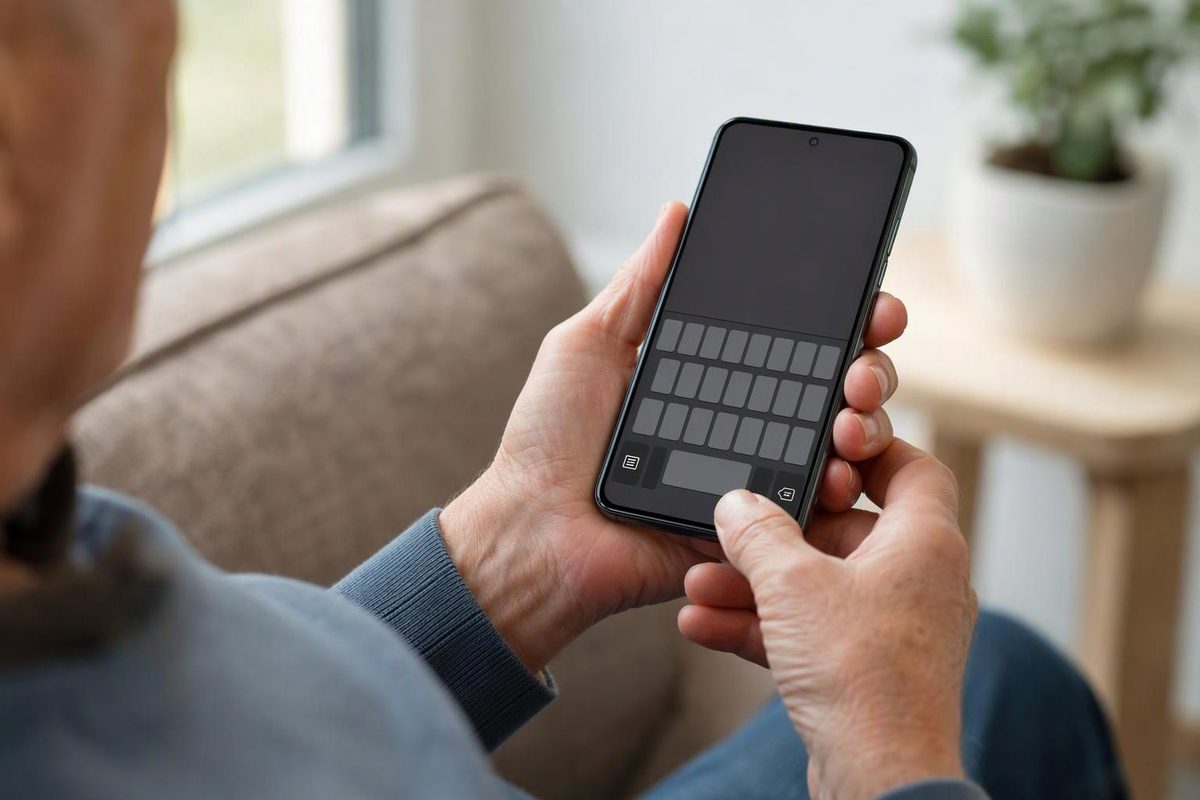
For a larger typing keypad on Android, start with your keyboard’s own sizing controls: Resize in Gboard or Size and transparency in Samsung Keyboard. You do not need to factory-reset your phone or install another keyboard to try these settings.
This guide covers the keyboard used for messages, searches and other text—not the Phone app’s dial pad. Menu names can vary with your phone and software version.
First, check which keyboard you use
Open a message or note and tap the text box. Open the keyboard’s Settings gear; its settings page should identify it as Gboard or Samsung Keyboard.
If you cannot find the gear, search your phone’s Settings for the keyboard’s name. On a Galaxy phone, Settings → General management → Keyboard list and default → Default keyboard shows the selected keyboard. A Samsung phone can use a keyboard other than Samsung Keyboard, so follow the instructions for the selected app. Samsung’s keyboard guide explains these settings and shortcuts.
Make Gboard taller
- Open a text box so Gboard appears.
- Tap the menu button on the keyboard’s top row, usually shown as four squares at the top left.
- Tap Resize.
- Drag the frame’s handles to increase the keyboard’s height.
- Tap the check mark or Done to save.
Gboard also lets you move the keyboard up or down using its drag control. Moving it is different from enlarging it: if the keys are too small, adjust the frame’s height first. To undo the change, reopen Resize and use the reset control to restore the original size and position. Motorola’s Gboard instructions document the resizing, moving and reset controls. A Google Pixel community answer describes the four-squares menu and Done label.
Try a modest increase, then type a sentence in a note. Keep enough room above the keyboard to see what you are writing. If Resize is missing, do not clear Gboard’s storage as a sizing workaround; check your keyboard version or use your phone manufacturer’s help for that model.
Enlarge Samsung Keyboard
- Open Settings → General management → Samsung Keyboard settings, or tap the keyboard’s Settings gear.
- Find Size and transparency, under Style and layout on some versions.
- Drag the handles around the keyboard to enlarge it, then confirm the change if prompted.
If the keyboard is a small popup or pushed to one side, first choose Mode → Standard keyboard in Samsung Keyboard settings. Samsung describes Standard as the normal full-width view, while Floating creates a small popup and One-handed shifts the keyboard to one side. Its official keyboard guide documents the modes and resizing handles, while noting that available screens vary by device and software.
Test the result in a note. If it feels too large, return to the same sizing screen and drag the handles back—there is no need to reset all keyboard settings.
If the whole screen is hard to read
Keyboard resizing is the first choice for larger typing keys. For broader readability, open the phone’s Settings and search for:
- Display size: Move the slider toward larger to increase the size of on-screen content.
- Font size: Move the slider toward larger for text. Google notes that some apps do not apply this setting, so it is not a reliable substitute for resizing the keyboard itself.
Change one slider at a time and check the preview before returning to your keyboard. Google’s display-settings guide explains both controls.
Magnification depends on your Android version
On Android 16 and later, Google documents Settings → Accessibility → Magnification → Magnify keyboard for zooming into letters and emojis during full-screen magnification. Enable a Magnification shortcut in the same section to turn magnification on and off. Use that shortcut again when you want to stop magnifying.
Do not assume older Android magnification will enlarge the keyboard: Google distinguishes the keyboard-zoom option as an Android 16-and-later feature. See its magnification instructions.
Use this if zooming helps you see the keys; use the keyboard’s sizing controls if you want a larger everyday typing layout. If a named option is absent, stop at that point and consult support for your phone model rather than changing unrelated settings.